
How to Claim and Verify Your Google Business Profile: A Step-by-Step Guide
July 27, 2026
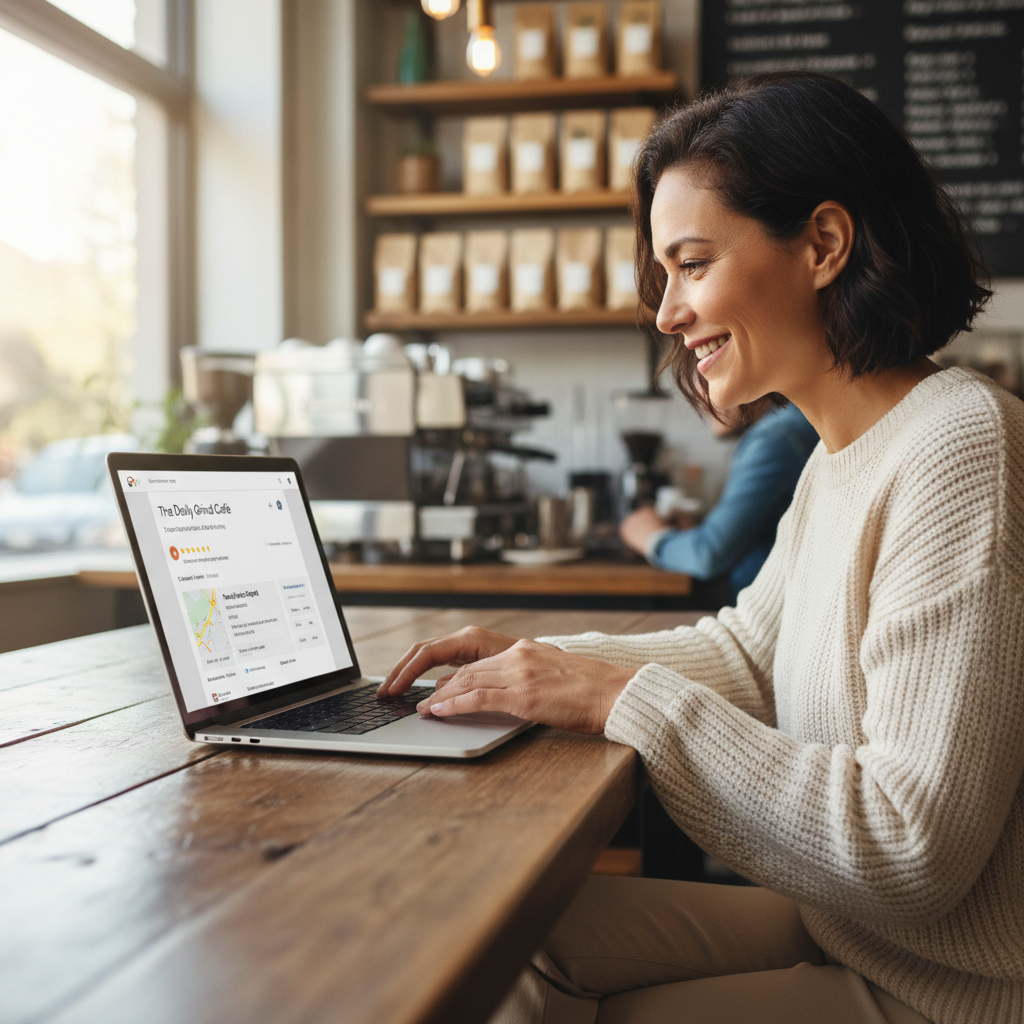
For any local business, whether you operate a physical storefront or provide services directly to customers, a strong online presence begins with your Google Business Profile (GBP). This free tool from Google is what puts your business on Google Maps and local search results, helping potential customers find you.
The first step to harnessing its power is to claim and verify your GBP. This process confirms you are the legitimate owner or authorized representative of the business, giving you control over the information displayed to millions of users daily. Without verification, you can't edit your profile, respond to reviews, or access insights crucial for growth.
Here’s a clear, step-by-step guide to claim and verify your GBP.
Step 1: Sign In to Your Google Account or Create One
You'll need a Google account to manage your GBP. If you already have one, simply sign in. If not, setting up a new Google account is free and takes just a few minutes. Make sure to use an account that you'll consistently monitor, as this will be where Google sends important notifications about your business profile.
Step 2: Search for Your Business on Google Maps or Google Search
Open Google Maps or head to Google Search. Type in your business name and its location. There are a few scenarios you might encounter:
- Your Business Appears: If it does, great! Click on it. Below the business information, look for a link that says "Own this business?" or "Claim this business." Click this link to begin the claiming process.
- Your Business Does Not Appear: If Google doesn't find your business, you'll see an option like "Add your business to Google." Click this to start creating a new profile from scratch. It's common for new businesses or those that haven't explicitly set up a GBP before.
Step 3: Enter Your Business Information Accurately
Whether you're claiming an existing listing or creating a new one, you'll be prompted to enter or confirm key details. Accuracy is paramount here. Ensure your business name, address, phone number, and website are consistent with how they appear everywhere else online (e.g., your website, directory listings).
Key information to provide:
Business Name
Use your official business name. Do not add keywords or locations to your business name unless they are part of your legal business name. Doing so can violate Google's guidelines and lead to suspension.
Business Category
Choose the most accurate category that describes your primary business function. Google offers a wide range of categories. Start typing to see suggestions. You can add additional categories later, but select the most specific primary one first.
Location (If Applicable)
- For storefront businesses: If customers visit your physical location (e.g., a restaurant, salon, retail store), select "Yes" when asked if you want to add a location customers can visit. Enter your precise street address.
- For service-area businesses: If you serve customers at their location (e.g., a plumber, landscaper, cleaner) and don't have a physical storefront customers visit, select "No" when asked if you want to add a location customers can visit. You'll then specify your service areas instead. This distinction is important for how Google displays your business. Learn more about optimizing your profile for visibility through Local SEO.
Service Areas
If you're a service-area business, or a mixed business with a storefront and you visit customers, you'll define your service areas. Be specific with cities, counties, or zip codes where you operate. Avoid listing an excessively large area, as it can appear less relevant to local searches.
Contact Information
Enter your business phone number and website URL. If you don't have a website yet, consider web development to build a professional online home for your business.
Step 4: Choose Your Verification Method
This is the critical step to verify GBP ownership. Google offers several methods, and the options available to you will depend on your business type and location. The most common methods include:
1. Postcard by Mail (Most Common)
Google sends a postcard containing a verification code to your physical business address (or your home address if you're a service-area business operating from home). This can take 5-14 business days to arrive. Once you receive it, log back into your GBP dashboard and enter the code.
- Important: Do not edit your business name, address, or category after requesting a postcard until you've entered the code. Doing so can cancel the verification process.
2. Phone or Text
Some businesses may have the option to receive a verification code via an automated phone call or text message to the phone number listed on their profile. Ensure the phone number is correct and accessible.
3. Email
If your business is eligible, Google might offer to send a verification code to an email address associated with your domain (e.g., info@yourbusiness.com). This is often the fastest method if available.
4. Video Recording
Google might offer a video verification option where you record a short video showing your business location, equipment, or proof of management. Follow the on-screen instructions carefully.
5. Instant Verification (Less Common)
If you've already verified your business website with Google Search Console using the same Google account, you might be instantly verified. This is rare but possible.
Select the method that works best for you and follow the instructions provided by Google. Be patient, especially with postcard verification.
Step 5: Complete Your Profile After Verification
Once your business is verified, you gain full control over your GBP. This is where the real optimization begins. Thoroughly complete every section of your profile to maximize its impact. Key areas include:
- Hours of Operation: Accurately list your regular and special holiday hours.
- Services/Products: Detail what you offer. For service-area businesses, this is particularly valuable for ranking for specific service searches. For storefronts, listing products can help surface your business in shopping results.
- Photos and Videos: Upload high-quality images of your storefront, interior, products, and team. Businesses with photos receive more requests for directions and website clicks.
- Attributes: Add relevant attributes like "Wi-Fi," "wheelchair accessible," "outdoor seating," or "appointments required." Don't miss these details, as many customers filter searches based on them.
- Description: Write a concise, keyword-rich overview of your business.
- Posts: Use GBP Posts to announce updates, offers, events, or new products regularly. This keeps your profile active and engaging.
Regularly updating and monitoring your Google Business Profile is an ongoing task. It's not a set-it-and-forget-it tool. Responding to reviews, updating hours, and adding new photos all contribute to better local search visibility. For physical locations, consider also optimizing your presence on Apple Maps with Apple Maps optimization.
If you'd rather skip the DIY, Apex Growth handles GBP optimization for local businesses — book a free strategy call.
Apple Maps Ads FAQs
Ready to grow your local business?
Book a free strategy call and we'll get you a $150 Apple Maps Ads credit — no obligation.
Book a Free Call